In short: details of the processing steps, roughly in the order they run: alignment and integration, linear processing, stretching and stars. AutoContinue reruns processing from intermediate images, for example after a manual fix. External tools like RC Astro tools, GraXpert and StarNet are described at the end.
Settings that are in the Other, Preprocessing, Integration and Postprocessing tabs are visible only in Expert mode. Settings in the Files, Settings, Tools, Enhancements and Interface tabs are visible also in Simple mode.
- Auto options
- Alignment and integration: Reference images · FastIntegration · Local normalization · Drizzle · Crop to common area
- Linear processing: Background neutralization · Gradient correction · Exclusion area for DBE · Color calibration · Image solving · Sharpening and deconvolution · Noise reduction
- Stretching: Image stretching
- Stars: Removing and stretching stars · Reducing stars · Combining starless and star images
- AutoContinue
- Selecting tools
- External tools: RC Astro tools support · GraXpert support · StarNet and DeepSNR support
Auto options
Several processing choices have an Auto option that makes the choice based on the data. Auto decides during processing, for example after SubframeSelector has measured the images, so the decision can be different for different data sets. If an option is selected explicitly, it is always used and Auto does not change it.
| Auto option | Default | What it decides |
|---|---|---|
| Tool selection | On | Best installed tool for gradient correction, noise removal, star removal and deconvolution |
| Image stretching | On | Stretching method from target type or from sky analysis of the image |
| Auto SPCC | On | SPCC for RGB data, ColorCalibration if image solving or SPCC fails |
| Auto local normalization | On | Local normalization for each filter that has images from several nights |
| Auto drizzle | Off | Drizzle when images are undersampled and there are enough images |
All decisions are listed with the reason in the Auto decisions list at the end of processing. The list is in the process console, in the log file and in the image processing history.
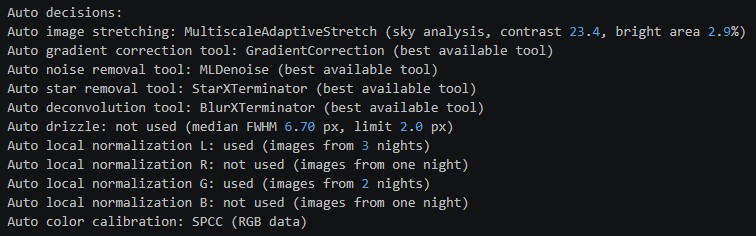
The flowchart generated before processing shows steps that are decided during processing with names like Auto color calibration, Auto stretching, Auto local normalization and Auto drizzle. When the decision is made, the step is renamed to the selected process, or removed if it is not used.
In test mode Auto SPCC, Auto local normalization and Auto drizzle are not used and Auto tool selection skips AI tools so test results do not depend on the data, installed tools or databases. The Auto: options in test mode option in the Other tab enables them in test mode for testing the Auto options.
Alignment and integration
Reference images

AutoIntegrate automatically selects the reference images for star align, image integration and local normalization. By default the images with the best SSWEIGHT value are chosen.
It is possible to manually choose reference images. A reference image for star alignment is used to align all light images. For each filter reference images are used for image integration and local normalization.

There is a button that can be used to calculate SSWEIGHT values for each file and automatically mark reference images to the file list. It is useful for checking which files would be chosen and fine tune the selection if needed. SSWEIGHT values are calculated for the files in file list that may not debayered or cosmetically corrected so they may differ from those calculated during processing. If no reference images are selected manually then automatically selected images are marked to the file list after processing. They can be found also from the AutoIntegrate log file.
Note that manually selecting reference images for filters do not work with OSC images if the Extract channels option is used. In that case extracted channel images should be loaded separately as LRGB images to choose correct reference images.
FastIntegration
AutoIntegrate supports the FastIntegration process. FastIntegration is a new process that is available in PixInsight version 1.8.9-2 or later. It is a faster version of the old ImageIntegration process. It is recommended to use FastIntegration instead of ImageIntegration if you want quick results or if you have a huge number of images.

FastIntegration has some setup options in Integration / FastIntegration section. By default FastIntegration skips cosmetic correction and also uses a subset of frames to find the reference image. It is possible to change these settings in the FastIntegration section.
FastIntegration also supports drizzle integration. Drizzle integration is useful when you have undersampled data and you want to increase the resolution of the image. Note that drizzle integration uses the normal DrizzleIntegration process so some performance benefits of FastIntegration are lost.
Local normalization

LocalNormalization matches the background level and gradients of each image to a reference image before ImageIntegration. It helps when images are taken on different nights, with different sky conditions or with the moon at different positions. Local normalization is selected with the Local Normalization option in the Settings tab. Settings are in the Integration / LocalNormalization section.
The Auto option next to Local Normalization is on by default. When Local Normalization is not checked, local normalization is used for a filter if its images are from several nights. Nights are found from the DATE-OBS keyword: a gap of more than 8 hours between images starts a new night. The decision is made separately for each filter, so for example L images from three nights use local normalization and R images from one night do not.
Auto local normalization is not used in fast mode or with FastIntegration, and not if DATE-OBS is missing. If LocalNormalization cannot normalize an image, for example a very bad image with few stars, the image is not used in ImageIntegration and a warning is given.
Drizzle

Drizzle integration can increase the resolution of undersampled images, where stars are only a few pixels wide. Drizzle is selected with the Drizzle, scale option in the Settings tab. Scale 2 doubles the image width and height. Settings are in the Integration / Drizzle section.
Drizzle needs dithered images, where the telescope moves a few pixels between images. Without dithering drizzle can create pattern artifacts.
The Auto option next to Drizzle, scale is off by default. When it is checked and Drizzle is not checked, drizzle is used with the selected scale if all of the following are true:
- The median FWHM measured by SubframeSelector is less than 2 pixels.
- Every filter has at least 20 images.
- The drizzled image is not larger than 150 megapixels.
Auto drizzle is not used in fast mode, with FastIntegration, with comet alignment or when SubframeSelector is not run. Use Auto drizzle only with dithered images.
Crop to common area
It is possible to automatically crop bad pixels on the sides of the images. This works by integrating all images, finding an area where all images are contributing and cropping channel images to that area.
Automatic cropping makes it easier to get an image with only good data in it. It also helps automatic processes such as stretching because only real data is included in the image.
To check how much cropping was done, an image AutoCropInfo is left minimized on the screen together with the integrated images. It is also saved to the AutoProcessed directory.
Automatic cropping can be used also during AutoContinue. Cropping requires that the AutoCropInfo file is open in the PixInsight desktop. Cropping can be done only if starting from Integration_[LRGBHSO] or Integration_RGB_color files. In older versions of AutoIntegrate this image was called LowRejectionMap_ALL, and AutoContinue still accepts that name.
In the case of AutoContinue it is possible to edit the crop preview area in the AutoCropInfo image. AutoContinue will use the crop preview from AutoCropInfo. In this way it is possible to rerun the processing using a different crop if needed.
Below is an example that shows the difference between non-cropped image (left) and cropped image (middle). On the right is an AutoCropInfo image showing the cropped area.
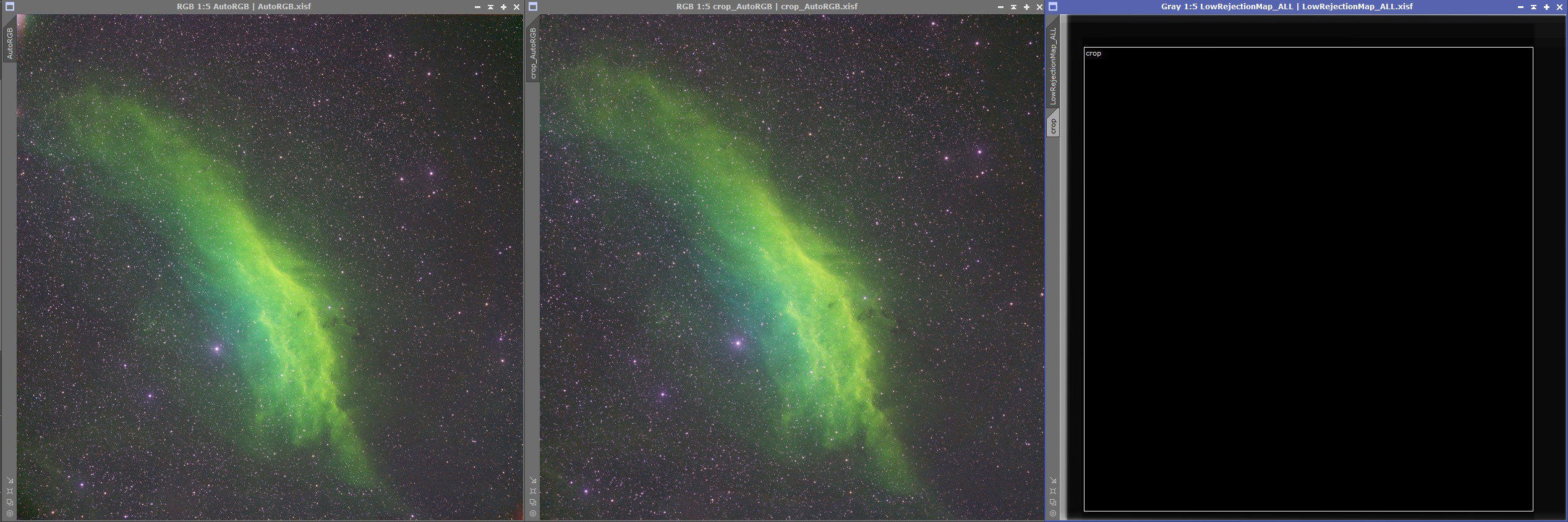
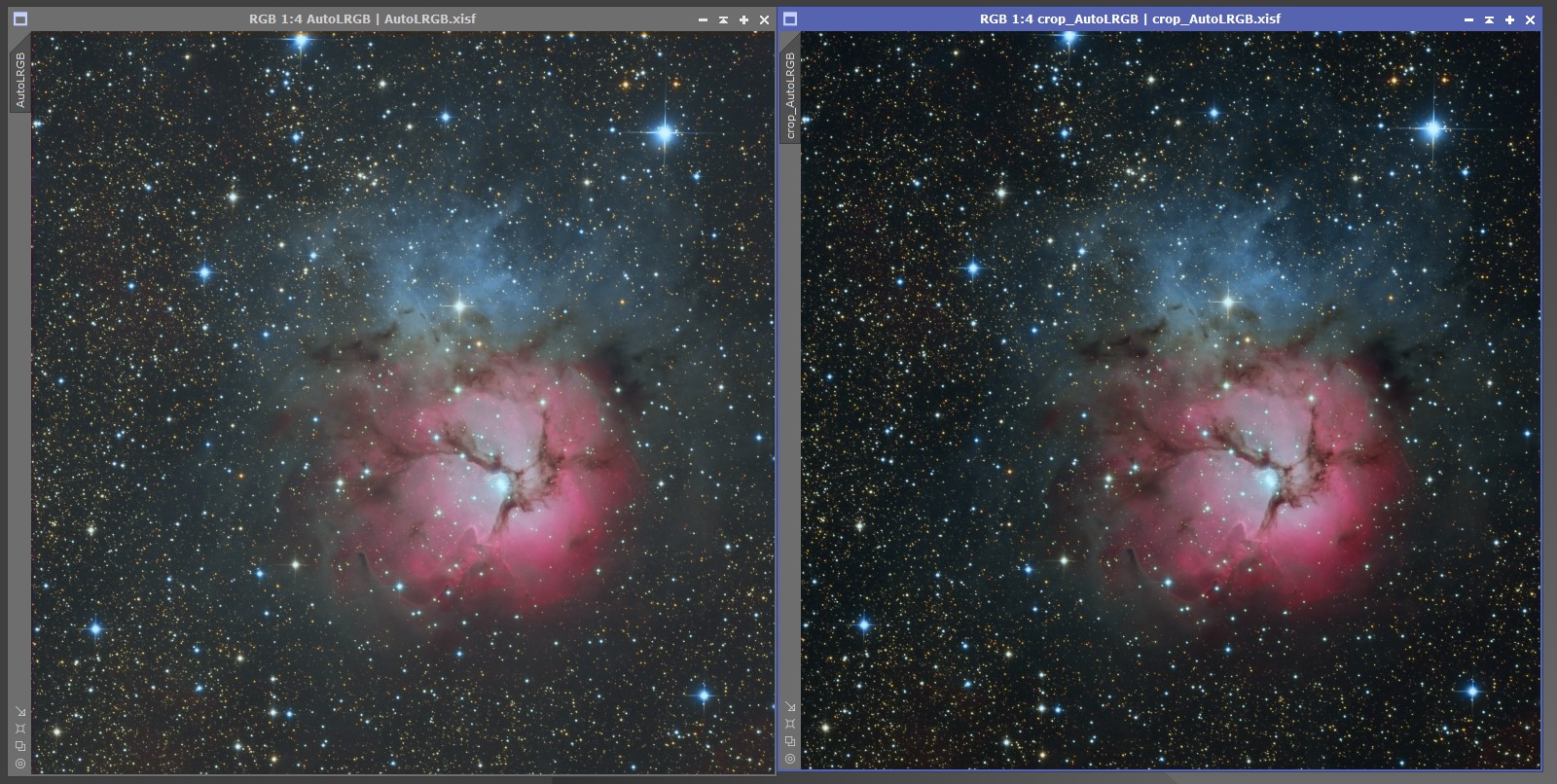
Sometimes the cropping also helps with automatic processing. Below is an example that shows the processing difference between non-cropped image (left) and cropped image (right). Since bad pixels on the side are cropped, automatic processing can better stretch the images since there is only real data in the image.
Linear processing
Background neutralization

Option Use BackgroundNeutralization can be selected to run the background neutralization process automatically.
For background neutralization a method is added to find a true background area in an image. True background area is then used by the BackgroundNeutralization process. A new image named AutoBackgroundModel is created that shows the background area. The AutoBackgroundModel can be edited and it is used with AutoContinue if it already exists.
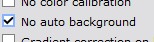
Finding a true background is enabled by default but can be switched off with the No auto background option in the Other / Other parameters section.
Gradient correction
Selecting gradient correction process
Multiple options for gradient correction are available. The default option is to use the GradientCorrection process.
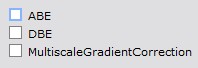
There are options to use the following processes for gradient correction.
- GradientCorrection (default unless some other option is selected)
- ABE (AutomaticBackgroundExtractor)
- DBE (DynamicBackgroundExtraction)
- MultiscaleGradientCorrection
- GraXpert
To try out different gradient correction methods there is a standalone script Gradient Correction in the Script / AutoIntegrate menu.
The gradient correction tool is selected in the Settings / Tools section. The default Auto option uses GradientCorrection, see Selecting tools.
Notes on different gradient correction methods:
- When DBE is used, sample points are set automatically for the image.
- If GraXpert is used, it must be installed separately as it is an external tool.
- When using MultiscaleGradientCorrection you need to set up the MARS database in PixInsight. Note that the MARS database does not yet cover the whole sky. If the image area is not in the MARS database, normal GradientCorrection is used. Also the image must be plate solved when using MultiscaleGradientCorrection.
For setting the parameters for the gradient correction processes, see Postprocessing / Gradient correction section. It has a separate sub-section for each gradient correction process.
When to run gradient correction
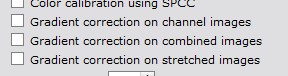
There are options to select when the gradient correction is executed. The default option is not to do gradient correction. One of these options must be selected to do gradient correction. Also multiple options can be selected at the same time.
- Gradient correction on channel images
- Gradient correction on combined images
- Gradient correction on stretched images
At which point of the processing the gradient correction is executed is selected in the Settings / Image processing parameters section.
Exclusion area for DBE
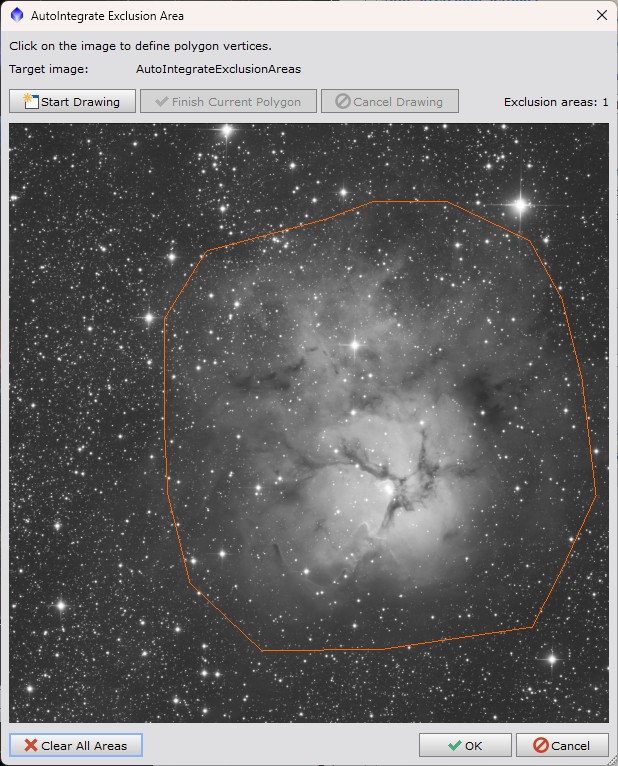
When using DBE it is possible to exclude an area for selecting sample points. This can be useful for example when there is nebulosity with low brightness in the image. Exclusion area is used also when selecting background sample for background neutralization.
Exclusion area is set in the DBE settings sub-section of the Postprocessing / Gradient correction section. It opens a new dialog where you can select the exclusion area. From the drop down list is is possible to select the image that is used for selecting the exclusion area. If the image is non-linear it is auto stretched for the exclusion area dialog.
If images are not well aligned, it is recommended to use the Settings / Image processing parameters / Integrate only option. This will align the images before the exclusion area is selected. Autocontinue can then be used to continue the processing.
Color calibration
By default RGB data is color calibrated using SpectrophotometricColorCalibration (SPCC) with the Auto SPCC option, see below. Narrowband data, and RGB data when SPCC cannot be used, is color calibrated using the ColorCalibration process. ColorCalibration is run on the linear RGB image before the image is stretched to non-linear, and by default again on the stretched image.
SpectrophotometricColorCalibration
SpectrophotometricColorCalibration (SPCC) uses star colors from the Gaia DR3/SP database for color calibration. SPCC is run on the linear RGB image. The Gaia DR3/SP database must be installed in PixInsight. Some configuration options are available for SPCC.
The Auto option next to Color calibration using SPCC is on by default. When Color calibration using SPCC is not checked, SPCC is used for RGB data, including OSC and DSLR data. It is not used for narrowband data, but when the RGB stars option creates the stars image from RGB channels, SPCC is used for the RGB stars image. If image solving or SPCC fails, for example when the Gaia DR3/SP database is not installed, ColorCalibration is used instead, a warning is given and processing continues. The reason is shown in the Auto decisions list.
When Color calibration using SPCC is checked, SPCC is always used and a failure in image solving or SPCC stops processing. With narrowband data SPCC narrowband mode is used when the Narrowband auto mode option in the SPCC settings is checked, which is the default. Uncheck both Color calibration using SPCC and Auto to always use ColorCalibration.
SPCC filter and sensor curves are selected with the Filter set and QE curve options. Mono filter sets are for mono cameras with separate R, G and B filters, OSC filter sets are for color cameras. With Auto, data from mono camera RGB filters uses Chroma R, G and B filter curves with the QE curve of Sony IMX411/455/461/533/571 sensors. These are close to typical mono RGB filters and sensors. Color camera (OSC and DSLR) data uses Sony Color Sensor R, G and B UV/IR cut curves with an ideal QE curve. Seestar data is detected from the image keywords. With the LP filter Seestar LP curves are used, otherwise Sony IMX462/662/585 UV/IR cut curves that match the Seestar sensors are used. If you know your filters or camera sensor, select them to get more accurate colors.
Curves are read from the PixInsight filters database. If the database is not found, a built-in copy of the curves is used. The filter set and QE curve are also used with SpectrophotometricFluxCalibration before MultiscaleGradientCorrection.
SPCC calibrates colors against star catalog data and keeps the real colors of the target. Targets near the Milky Way with a lot of dust can look warm or yellow because interstellar dust makes the starlight redder. To neutralize the overall color, set When to run color calibration to nonlinear. Then ColorCalibration is run on the stretched image after SPCC.
SPCC requires that the image is plate solved. Plate solving is run automatically on Integration_RGB image which is also saved to disk. When the RGB stars option is used with SPCC, the RGB stars image is also plate solved before SPCC. An RGB stars image that is color calibrated with SPCC is not color calibrated again after stretching. Some sources say that you should use Drizzle with scale 1 or 2 when using SPCC.
Sample narrowband color calibration output
Below is an image that shows results from different narrowband processing using different color calibration and AutoSTF auto/linked/unlinked channel options.
The first row is using defaults with no color calibration and auto (unlinked) channels for AutoSTF. Second row is using SPCC with auto channel link mode. With narrowband images and SPCC the auto channel link mode AutoIntegrate uses linked channels for AutoSTF when there is H assigned into the red channel, otherwise AutoIntegrate uses unlinked channels.
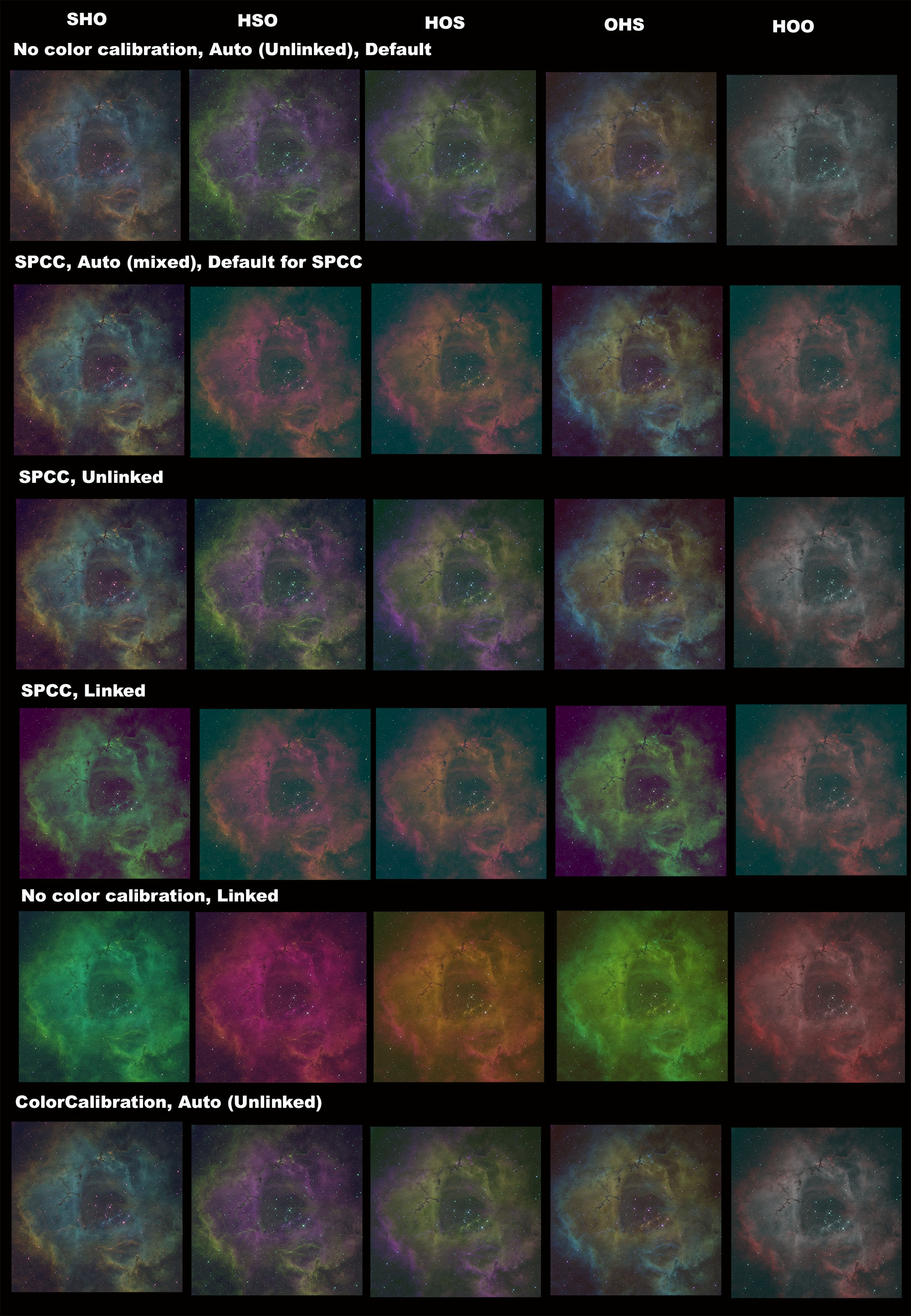
Image solving

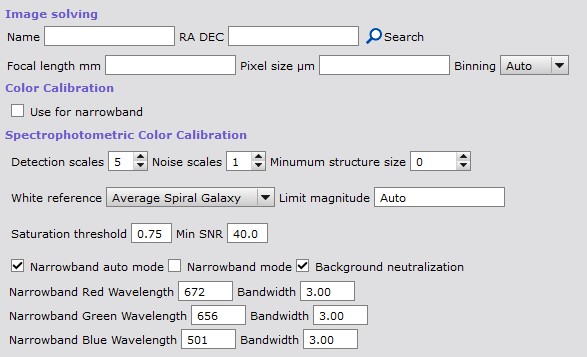
If the image does not have center coordinates for plate solving then coordinates can be given in a new Postprocessing / Image solving section. Coordinates can be given manually or searched using an online database (Sesame). Image solving needs correct focal length to work properly. If focal length is not embedded into image metadata it can be given in the Focal length field.
Sharpening and deconvolution
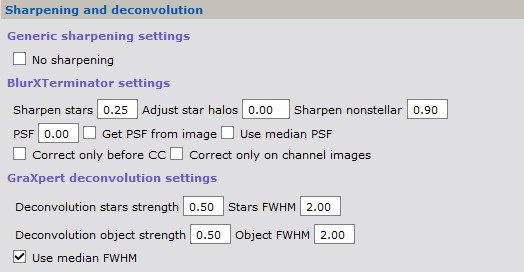
Deconvolution and sharpening is done by default. The tool is selected in the Settings / Tools section. With the default Auto option BlurXTerminator or GraXpert deconvolution is used if available. Deconvolution is run on the linear image just before stretching. If no deconvolution tool is available, MultiscaleLinearTransform sharpening is run on the non-linear image using a luminance and star mask to target light parts of the image.
Settings are in the Postprocessing / Sharpening and deconvolution section. Option No sharpening skips all deconvolution and sharpening. The section also has settings for BlurXTerminator and GraXpert deconvolution.
Noise reduction

Option Auto selects automatically correct time for noise reduction. It is the default option. Noise reduction is done on the processed linear image, that is, on the combined RGB or color/OSC image and on the luminance image. It is done after possible deconvolution with BlurXTerminator or GraXpert deconvolution and before the image is stretched to non-linear. Noise reduction is done on the combined image and not on the individual channel images.
Option Channel image does noise reduction on each color channels and luminance image separately. This option does nothing with color/OSC images.
Option Combined image does noise reduction on combined image. Image can be from channel combination or from integrated color/OSC image. On L image noise reduction is done before processing which is the same as channel noise reduction.
Option Processed linear image does noise reduction on processed RGB image and possible luminance image in linear stage.
Option Non-linear image does noise reduction in non-linear state after stretching on combined and luminance images.
Noise reduction should be done after BlurXTerminator or GraXpert deconvolution. Option Auto does that, other possible options are Processed linear image and Non-linear image. Note that option Combined image does noise reduction before deconvolution. But it is always good to experiment what is best for your own data.
The noise reduction tool is selected in the Settings / Tools section. By default the Auto option uses the best available AI tool in the order MLDenoise, NoiseXTerminator, DeepSNR and GraXpert denoise. If none of them is available, MultiscaleLinearTransform is used. Any of these tools can also be selected explicitly, see Selecting tools.
MLDenoise is a noise reduction process that is included in PixInsight starting from version 1.9.5 so it does not need to be installed separately. Auto uses it when the model file is set.
MLDenoise needs a model file that must be downloaded separately. Model files have a .xmlm extension and they can be saved to any directory. The model file is set in the Tools / MLDenoise section. If the model file is not set when MLDenoise is selected, the script asks for it. The model file must be given in AutoIntegrate, setting it in the PixInsight process does not suffice.
The amount of noise reduction, high-precision inference and local support are set in the Postprocessing / Noise reduction section. Other MLDenoise settings use the default values.
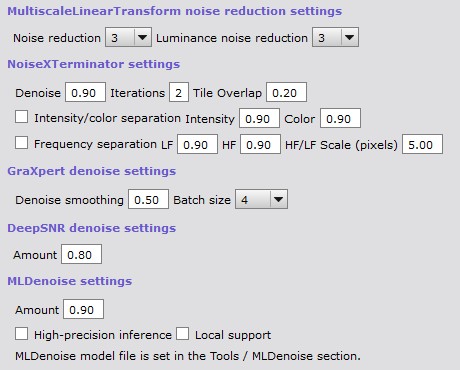
Options for different noise reduction tools.
Stretching
Image stretching

AutoIntegrate offers a few options to stretch an image from linear to non-linear.
- Auto - Selects the stretching method automatically, this is the default.
- Auto STF - Uses Auto Screen Transfer Function.
- MultiscaleAdaptiveStretch - Uses MultiscaleAdaptiveStretch.
- Masked Stretch - Uses MaskedStretch to stretch an image.
- VeraLuxHMS - Uses VeraLux Hypermetric Stretch to stretch an image.
- Masked+Histogram Stretch - Uses MaskedStretch with Histogram prestretch to stretch an image.
- Histogram stretch - Using simple histogram transformation to get histogram median or peak to the target value.
- Other stretch methods
To try out different stretching methods there is a standalone script Image Stretching in the Script / AutoIntegrate menu.
Auto
Auto is the default option. It selects the stretching method when processing starts:
- With target types Galaxy and Star cluster, MultiscaleAdaptiveStretch is used, or Masked Stretch if MultiscaleAdaptiveStretch is not available.
- With target types Default and Nebula, the method is selected with sky analysis of the image, see below.
- If sky analysis is not used, MultiscaleAdaptiveStretch is used if it is available in PixInsight, and Auto STF if it is not.
Sky analysis is on by default. It is controlled with the Use in Auto option in the Postprocessing / Stretching section. Sky analysis measures the contrast of the image. MultiscaleAdaptiveStretch is used when the image has a small and bright target like a galaxy, star cluster or bright nebula. Auto STF is used when the image looks flat, like a frame filling nebula or a dark nebula. The decision is made once per run on the first stretched image, which is the luminance image in LRGB processing, so all images use the same stretching method. The Sky analysis button next to the option analyzes the current preview image and prints the result to the process console.
The selected method and the reason are shown in the Auto decisions list. If a stretching method is selected explicitly, it is always used and the target type or sky analysis does not change it. Auto is available only for the main Image stretching option, not for star stretching or the standalone Image Stretching script.
Auto STF
Auto STF is good in most cases. It can be fine tuned with STF targetBackground parameter. If you get too bright an image you can try lowering targetBackground value.
MultiscaleAdaptiveStretch
MultiscaleAdaptiveStretch is the new a new built in stretching tool in PixInsight.
Masked Stretch
Masked Stretch is a good choice when Auto STF does not give a good image. For example with bright galaxy images Masked Stretch is a good choice as it keeps brightness in control and gives better saturation.
VeraLuxHMS
VeraLuxHMS can work well on many targets. Typically it is great if you want saturated results.
VeraLux HyperMetric Stretch is a new stretching method created by Riccardo Paterniti. His original implementation is done in Python for Siril. This new stretching looks very interesting and has been added to the AutoIntegrate script.
The AutoIntegrate implementation was done using the original Python version that was found from GitLab. It was converted to the PixInsight Javascript using Claude AI tool.
Masked+Histogram Stretch
A minimal Histogram based stretch is done before Masked Stretch. This can help with stars that can be too pointlike with Masked Stretch. There is a separate parameter for the histogram prestretch target.
Histogram stretch
Histogram stretch is a very simple stretch that moves the histogram median or peak to the target value. Stretch is done iteratively in small steps.
Histogram stretch works best with images that are processed with the Crop to common area option.
Other stretch methods
There are a few other stretch methods available. These could be described as experimental. They may not be as useful as other stretch methods but they can be helpful in some special cases.
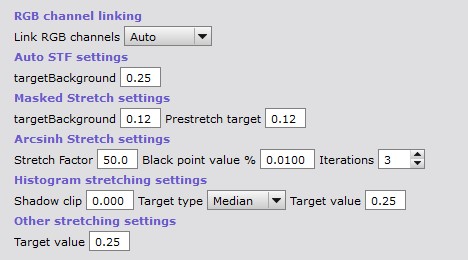
In the Postprocessing / Stretching section there are some settings for the stretch methods.
Stars
Removing and stretching stars

AutoIntegrate can automatically remove stars from an image. There are a few options to remove stars and combine them back into the starless image. Starnet2 or StarXTerminator can be used to remove stars. Star removal and stretching options are available in the Postprocessing / Star stretching and removing section.
A separate stretching is used for the stars image. Stars image stretching and combining settings are selected using the Stretching for stars and Combine options.
A separate RGB stars section has an RGB stars option that is used to create RGB stars for narrowband images. For more details see Automatic processing of RGB stars in the narrowband guide.
Steps to remove stars.
- In the Settings / Tools section keep Auto to use StarXTerminator or StarNet2, whichever is installed, or select one of them explicitly.
- In the Postprocessing / Star stretching and removing section select when to remove stars.
- Run a normal processing.
- AutoRGB has stars being added back.
- AutoRGB_starless is the starless image.
- AutoRGB_stars is the star image.
Remove stars from channel images
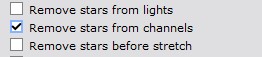
With LRGB and narrowband images this option removes stars from L, R, G, B, H, S and O channel images separately before channels are combined and while images are still in the linear stage. Star images from channels are then combined to create a star image.
With color images (DSLR/OSC) the option removes stars after color calibration while the image is still in the linear stage.
Remove stars before stretch
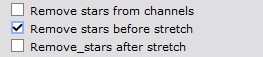
Removes stars from combined RGB or narrowband images just before stretching while it still is in the linear stage. Stars are used only from the RGB/narrowband image, stars from the L image are not used.
For OSC data this may not work well. Separating channels might help.
Remove stars after stretch
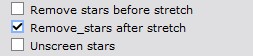
Removes stars from combined RGB or narrowband images just after stretching when the image is not any more in linear stage. Stars are used only from the RGB/narrowband image, stars from the L image are not used.
Remove stars from light images
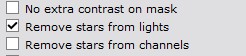
This option removes stars from each individual light image. Star removal is done after star alignment and before optional comet alignment.
Unscreen stars

For both normal and enhancements processing there is an Unscreen stars checkbox. This option uses a bit of a different method to generate the stars image as described by Russell Croman. For details see this post: "Unscreening" and re-screening: recombining stars with starless images
The Unscreen method usually keeps star colors more correct than simple star removal. It is recommended to use the Screen method when combining star and starless images back together.
Unscreen stars is enabled by default.
Star image stretching
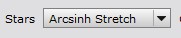
When stars are removed before stretching then a different stretching can be used for the stars and potentially get better star colors.
Enhancements remove stars

Removes stars from the final image to generate a starless image and a separate stars image.
Enhancements Fix star cores
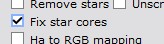
Sometimes star cores can be too bright and need to be fixed. There is an Enhancements option Fix star cores to fix star cores in the Enhancements / Generic enhancements section.
Reducing stars
Stars can be reduced either separately or when combining starless and star images.
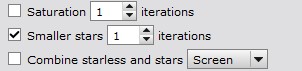
Enhancements option Smaller stars reduce star sizes. Number of iterations can be selected when reducing star sizes. Value zero uses Erosion instead of Morphological Selection

When combining starless and star images it is possible to reduce stars using PixelMath expressions created by Bill Blanshan. There are three different methods: Transfer, Halo and Star. There is also a control parameter for each method. For details see this YouTube video
Combining starless and star images
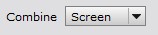
For combining starless and star images there are three different options: add, screen and lighten. Add is a simple PixelMath operation to add stars back. Screen and lighten are equivalent to similar Photoshop blending modes.
Combine option can be set separately in the Postprocessing / Star stretching and removing section and Enhancements / Generic enhancements section.
Enhancements processing to starless and stars images
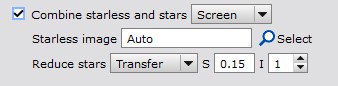
Enhancements processing has some additional options when combining starless and stars images.
To use the Enhancements option combine you need to have starless and stars images open on the desktop. Starless image must be selected as the target image.
With a default Auto mode AutoIntegrate tries to automatically find the stars image based on the starless image name. It assumes that your starless image name has a text starless and stars image name has a text stars. So a starless image sameprefix_starless_whatever is matched with a stars image sameprefix_stars_doesnotmatterwhatishere. You should get an error if a matching stars image is not found.
Using the select button it is possible to manually select the stars image from images open on the desktop.
Reduce stars options can be used to reduce star sizes during combine. These options use PixelMath equations created by Bill Blanshan.
AutoContinue
AutoContinue runs automatic processing from previously created LRGB/RGB, Narrowband or OSC/Color images. The idea with AutoContinue is that it is possible to start from integrated images and then run processing with different options. For example you can run AutoIntegrate with default settings and then use AutoContinue to run different options on the same images.
AutoContinue makes it possible also to run manually gradient correction or histogram transformation on the automatically processed images and then again continue automatic processing from there.
AutoContinue looks for images with fixed names and if it finds them it starts processing from those images. It is also possible to load integrated images for example from WBPP to the light files. If fixed image names are not found, option Integrated lights in Files tab is checked and light files have only one image for a filter then it is considered as an integrated light image.
Image names are based on intermediate images created by the script but they have a special extension to separate them from automatically generated images. An exception is integrated channel or RGB images which can be used as a starting point to run different processing on automatically created images. They are useful for example for testing with different stretching options or narrowband palettes.
Starting points and the search order for AutoContinue are listed below
- AutoLRGB or AutoRGB - Final image for enhancements
- L_HT + RGB_HT - Manually stretched L and RGB images.
- RGB_HT - Manually stretched RGB image
- Integration_filter_GCext - Gradient corrected integrated channel images
- Integration_RGB_GCext - Gradient corrected integrated color RGB image
- Integration_filter - Integrated channel images
- Integration_RGB - Integrated RGB image
Not all images must be present, for example the L image can be missing.
Explanation of terms used in image names:
- filter = Mono camera filter name, one of L, R, G, B, H, S or O.
- CGext = Gradient Corrected image, for example manual DBE or GraXpert is run on image. Postfix can be _GC, _ABE, _DBE or _GraXpert.
Simple example of using AutoContinue
In the simplest case you can use AutoContinue after basic processing is done and all icons are still on the desktop. In that case you can for example change the stretching setting or some other options, set a new Window Prefix to avoid overwriting previous processing and then run AutoContinue.
Example to run manual gradient correction
Below is an example of how to run manual gradient correction on images and then continue automatic processing from there. The example assumes that a base processing has been done with AutoIntegrate.
- First close all images on the desktop. For a mono camera, load channel images Integration_filter to the desktop. For example Integration_L, Integration_R, Integration_G and Integration_B. For color camera, load Integration_RGB image.
- If you want to avoid overwriting previously processed images set the Window prefix.
- Crop images to remove all black borders. If you want to use automatic cropping you should use option Save cropped images during base processing. Then it is possible to use cropped images with _crop extension.
- Run gradient correction on images. New images must have an extension like _DBE or _GraXpert. So gradient corrected Integration_R could be Integration_R_DBE, or Integration_RGB could be Integration_RGB_GraXpert.
- Select processing options and click AutoContinue.
Example to run manual stretching
Below is an example of how to run manual stretching on images and then continue automatic processing from there. The example assumes that a base processing has been done with AutoIntegrate.
- First close all images on the desktop. For mono camera, load images Integration_L_processed and Integration_RGB_processed to the desktop. For color camera, load Integration_RGB_processed image.
- If you want to avoid overwriting previously processed images, set the Window prefix.
- Run stretching on images and rename images to L_HT and RGB_HT.
- Select processing options and click AutoContinue.
With L image, the stretched images Integration_L_HT and Integration_RGB_HT are also saved to disk. To continue from the automatic stretching, for example to try different LRGB combination options, load them, rename them to L_HT and RGB_HT and click AutoContinue.
Selecting tools
The Settings / Tools section selects which tool is used for gradient correction, noise removal, star removal and deconvolution/sharpening. Only one tool can be selected for each step. The tools are listed in the order of preference, and the first option Auto is the default.
Auto selects the best available tool automatically when processing starts. AI based tools are preferred when they are clearly better. Both tools included in PixInsight, like MLDenoise, and installed external tools are used. The selected tool is shown in the Auto decisions list, for example Auto noise removal tool: MLDenoise (best available tool). Auto selection is done again on every run, so a newly installed tool is used automatically. If a tool is selected explicitly but it is not installed, a warning is given and Auto selection is used instead.
| Step | Auto checks tools in this order | If none is available |
|---|---|---|
| Gradient correction | GradientCorrection | ABE on old PixInsight versions |
| Noise removal | MLDenoise, NoiseXTerminator, DeepSNR, GraXpert denoise | MultiscaleLinearTransform |
| Star removal | StarXTerminator, StarNet2 | Stars cannot be removed |
| Deconvolution/sharpening | BlurXTerminator, GraXpert deconvolution | MultiscaleLinearTransform sharpening |
MLDenoise is used by Auto only if the model file is set in the Tools / MLDenoise section, and GraXpert only if the GraXpert path is set in the Tools / GraXpert section. For gradient correction Auto always uses GradientCorrection, other gradient correction tools must be selected explicitly.
Selecting a tool does not turn the processing step on or off. That is done with the options of each step. Settings for each tool are in the section of the processing step where the tool is used. The Tools tab has only tool setup like the GraXpert path and the MLDenoise model file.
| Step | Done by default | Turned on or off with |
|---|---|---|
| Gradient correction | No | Gradient correction options in the Settings / Image processing parameters section |
| Noise removal | Yes | No noise reduction and other options in the Postprocessing / Noise reduction section |
| Star removal | No | Remove stars options in the Postprocessing / Star stretching and removing section |
| Deconvolution/sharpening | Yes | No sharpening in the Postprocessing / Sharpening and deconvolution section |
Note that with Auto deconvolution is done automatically if BlurXTerminator is installed. Use the No sharpening option to skip deconvolution and sharpening, or select MultiscaleLinearTransform to use only the non-linear sharpening.
External tools
These tools are not part of PixInsight and must be installed separately. AutoIntegrate uses them automatically when they are installed and the tool selection is Auto, or when they are selected explicitly.
RC Astro tools support
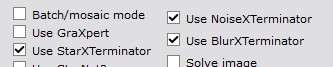
RC Astro tools are selected in the Settings / Tools section. With the default Auto option they are used automatically when installed, see Selecting tools. Settings for RC Astro tools are in the processing step sections which are described below.
BlurXTerminator

In the Postprocessing / Sharpening and deconvolution section there are settings for BlurXTerminator. The No sharpening option there skips BlurXTerminator.
NoiseXTerminator

In the Postprocessing / Noise reduction section there are settings for NoiseXTerminator.
StarXTerminator

In the Postprocessing / Star stretching and removing section there are settings for StarXTerminator.
There it is possible to select other than the default AI model. You can see the default AI model in the tooltip. AI models are stored in the PixInsight installation directory and have a .pb extension. At least in Windows they are in the PixInsight/library directory.
If you are getting tiling artifacts you can check Large overlap option. It runs slower but should give better results.
GraXpert support
It is possible to use GraXpert for gradient correction, denoising or deconvolution of the image.
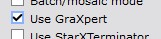
GraXpert gradient correction

For gradient correction GraXpert can be used instead of default gradient correction. GraXpert can be used by selecting the GraXpert option in the Settings / Tools section. Smoothing and correction settings can be configured in the GraXpert settings sub-section of the Postprocessing / Gradient correction section. When GraXpert is used from the script it always uses the AI model when removing gradients.
By default no gradient correction is done. To use GraXpert for gradient correction you need to also check one of the gradient correction options in the Settings / Image processing parameters section.GraXpert denoise
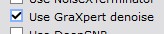
For denoising GraXpert can be used instead of default noise reduction. GraXpert can be used by selecting the GraXpert denoise option in the Settings / Tools section. Auto uses it if no other AI noise reduction tool is available. Smoothing and batch size settings can be configured in the Postprocessing / Noise reduction section.
GraXpert deconvolution
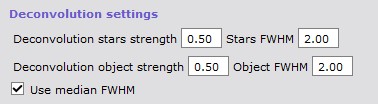
GraXpert deconvolution can be used to improve start quality and sharpen the image. It is used is used instead of the default image sharpening. GraXpert deconvolution can be used by selecting the GraXpert deconvolution option in the Settings / Tools section. Auto uses it if BlurXTerminator is not available. Strength and FWHM settings can be configured in the Postprocessing / Sharpening and deconvolution section for both stars and objects (non-stars).
Option Use median FWHM uses median FWHM from the subframe selector as the FWHM value. This value is calculated during AutoIntegrate processing and saved to the image metadata. Value is also printed to the AutoIntegrate.log file with a name AutoIntegrateMEDFWHM.
GraXpert generic settings

GraXpert is run as an external process so it must be installed on the computer before it can be used.
To use GraXpert first the path to the GraXpert binary must be set in the Tools / GraXpert section.
GraXpert AI model must be loaded manually before it can be used from AutoIntegrate. To load the AI model, run GraXpert manually once and close it. AutoIntegrate uses the default model.
Note that AutoIntegrate supports GraXpert version 2.2.0 or later.
StarNet and DeepSNR support
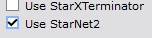
StarNet2 can be used to remove stars from the image. Before StarNet2 can be used it must be installed to PixInsight.
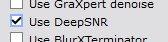
DeepSNR can be used to reduce noise in the image. Before DeepSNR can be used it must be installed to PixInsight. In Postprocessing / Noise reduction section there are settings for DeepSNR.