In short: Enhancements improve the final image after processing. Standalone tools run parts of AutoIntegrate as separate scripts from the Script / AutoIntegrate menu.
Image enhancements
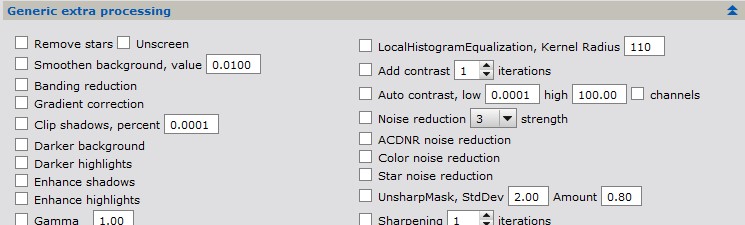
Image enhancements allow running several PixInsight processes and enhancements separately on an image. Image enhancements can be found in the Enhancements tab.
Enhancements can be run as part of the basic image workflow or it can be run separately on selected images. When enhancements are run separately on a selected image it is easy to experiment the effect of different processing in a preview window with undo and redo buttons.
Some of the enhancements that can be applied to the image include:
- Separate stars and background
- Combine starless and star images using selected option
- Clip shadows
- Gradient correction
- Darker background with a luminance mask
- ExponentialTransformation with a luminance mask
- HDRMultiscaleTransform with a luminance mask
- LocalHistogramEqualization with a luminance mask
- Add contrast
- Noise reduction
- Sharpening
- Smaller stars with a star mask.
If multiple options are selected see tooltips on the script for execution order.
To use AutoIntegrate enhancements tools without the full AutoIntegrate script there is a standalone script Image Enhancements in the Script / AutoIntegrate menu.
In case of Run or AutoContinue, Image enhancements steps are applied to a copy of the final image. A new image is created with _enh added to the name. For example if the final image is AutoLRGB then a new image AutoLRGB_enh is created. AutoContinue can be used to apply enhancements after the final image is created.
Target image and apply button

From a drop down list it is possible to select an image into which enhancements are applied. With the Apply button enhancements are by default run on a copy of the image. There is also a simple undo and redo mechanism to iterate with different enhancements options.
Live preview
Enhancements options that have a slider show their effect directly in the preview while the slider is moved. The live preview is applied to a copy of the target image, the target image itself is not changed. Use the Apply button to make the changes to the image.
Options with live preview are:
- Leave some green (only with narrowband images)
- Apply curves
- Adjust shadows
- Gamma
- Adjust channels
- ExponentialTransform
- UnsharpMask
- Saturation
- Clarity
Other options do not have a live preview. They are either slow, like AI based tools, or they do not have a single value to adjust. Their effect is seen after Apply.
How to use live preview:
- Select the target image from the drop down list.
- Move a slider. The option is checked automatically when its slider is moved, so the live preview and Apply use the same options.
- The preview is updated shortly after the slider stops moving. The preview title shows [Live preview: ...] with the names of the options shown.
- When the result looks good, press Apply.
Live preview shows all checked options that have a slider, in the same order as Apply runs them. Checked options without a slider are not included in the live preview, so the final result after Apply can be different if other options are checked too. Unchecking an option removes it from the live preview. When no live preview option is checked the preview shows the target image.
It is usually easiest to fine tune one option at a time and Apply it before moving to the next one. Each Apply can be undone, so it is easy to go back and try again. Multiple checked options work too, but the live preview gets slower with each option.
Options that use a lightness mask, like ExponentialTransform and UnsharpMask, use a lightness mask created from the preview image. If a range mask is used with Apply, the live preview still uses a lightness mask, so the result may differ a bit.
Live preview is controlled with two checkboxes in the Misc options section:
- Live preview turns live preview on or off. It is on by default. When it is off, sliders only change option values and the effect is seen after Apply. Moving a slider does not check the option either.
- Downsample live preview uses a smaller copy of the target image for the live preview, the longest side is 2000 pixels. This makes the live preview faster with large images or slower computers. The smaller copy is created once and reused until the target image changes. Apply always uses the full size image. Pixel based values like UnsharpMask StdDev are scaled so that the downsampled preview looks similar to the full size result.
The preview can be zoomed up to 8:1 to check fine details, and a zoomed image can be moved by dragging it with the left mouse button.
Narrowband specific enhancements

There are also narrowband specific enhancements options in the Enhancements / Narrowband enhancements section. Below are some options.
- remap SHO or HOO image to a new palette
- Remove green cast, useful in SHO images
- Remove part of the green cast but leave some green color, useful in SHO images
- Fix magenta star colors often visible in SHO images
Annotate images
Annotate images enhancements can be used to add annotations to the final image. When used with the Run or AutoContinue button a new image with _Annotated postfix is created. Annotate image uses PixInsight AnnotateImage script.
Note that the image must have a correct astrometric solution embedded for annotation to work. When using SPCC color calibration the astrometric solution is automatically embedded.
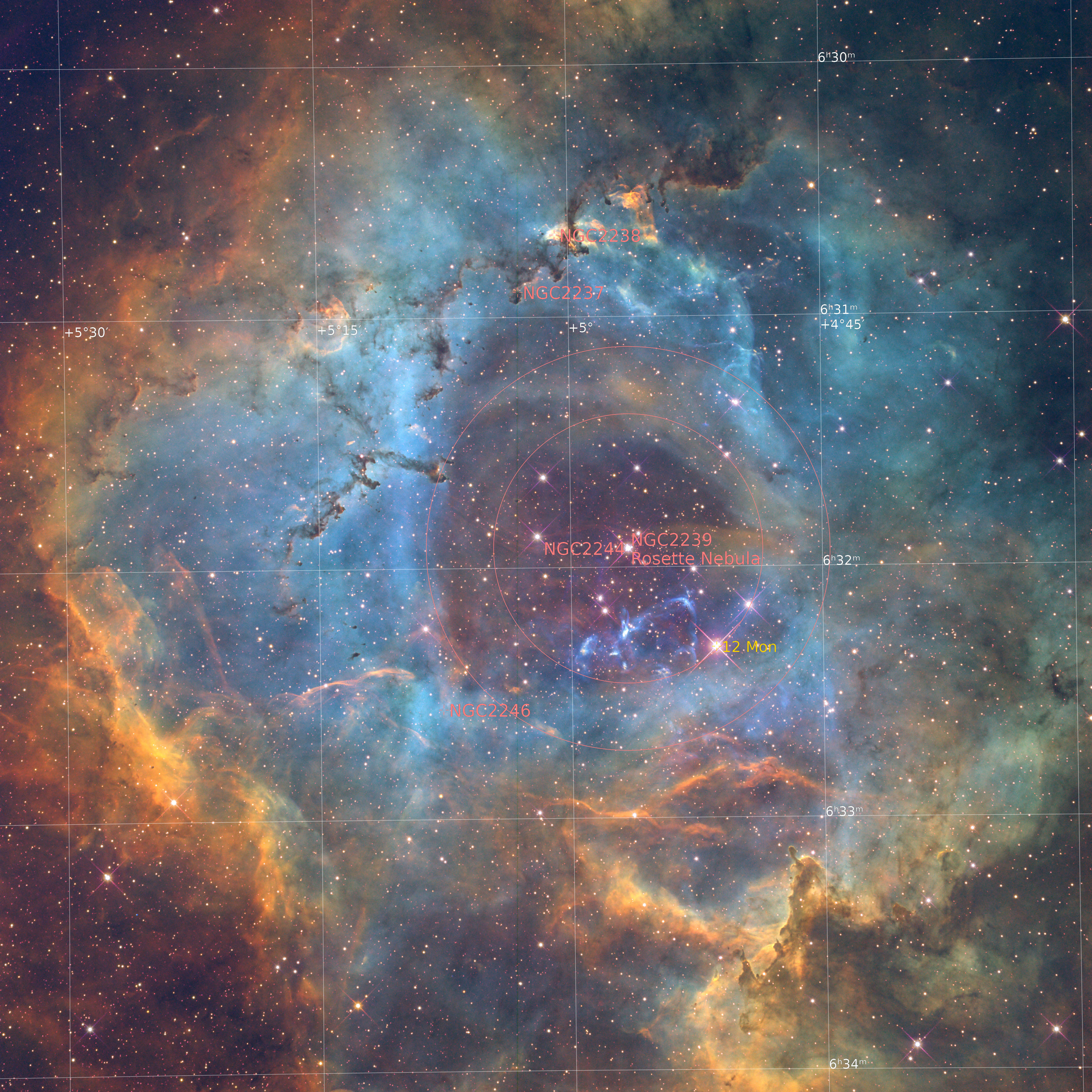
Annotated image.
Add signature

Signature enhancements option is used to add signature to the final image. The signature image file must be given by the user. The signature file can be for example a .png image with a transparent background. Note that no borders are added to the image.
Optionally the signature image can be scaled relative to the main image. The scaling is given as a percentage of the main image size. The signature position can also be chosen: 'Top left', 'Top middle', 'Top right', 'Bottom left', 'Bottom middle' or 'Bottom right'.
Standalone tools
Standalone tools are scripts that are derived from the larger AutoIntegrate suite. They can be used independently of the main AutoIntegrate script for specific tasks.
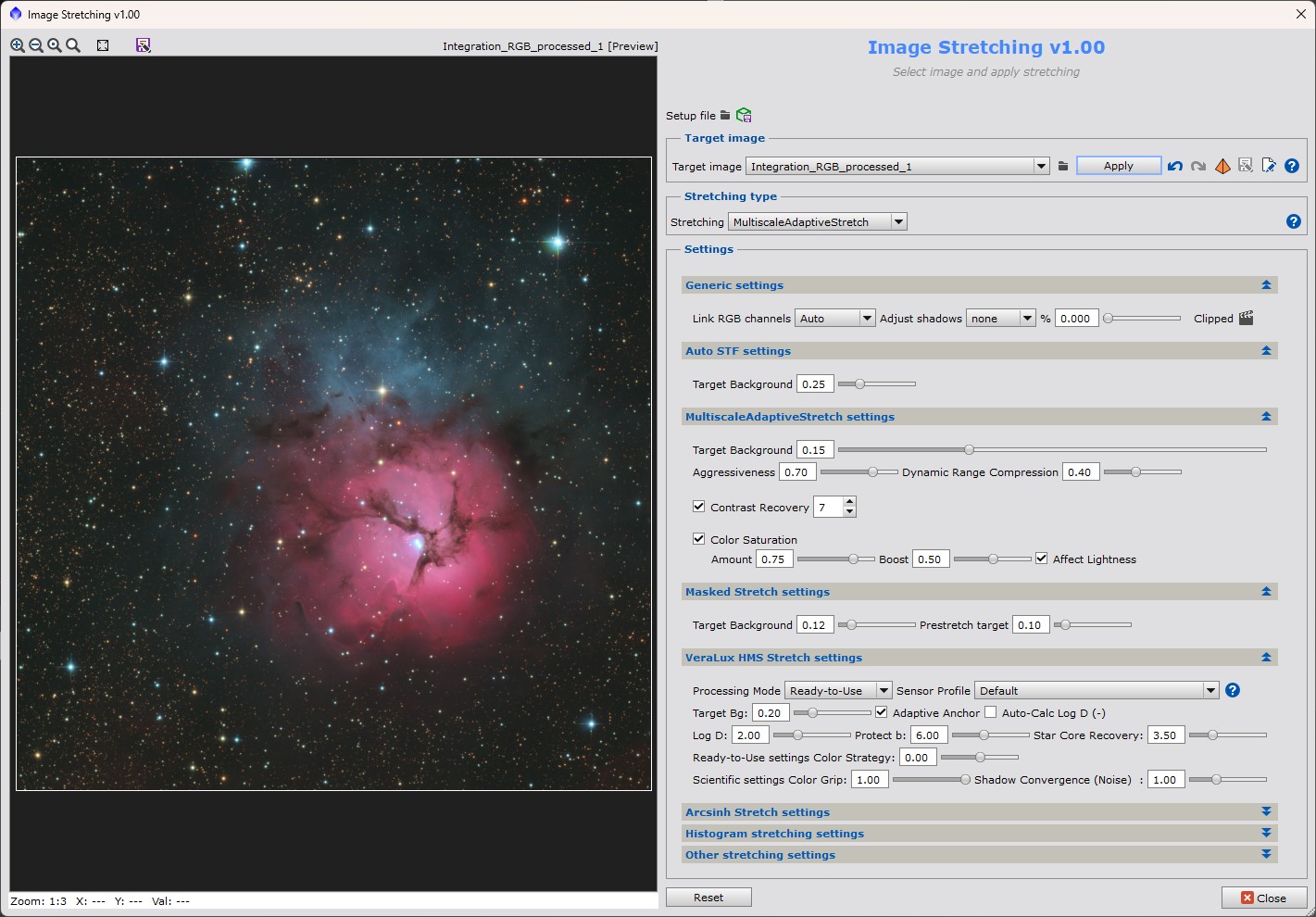
Image stretching
Standalone image stretching script allows applying different stretching methods to images.
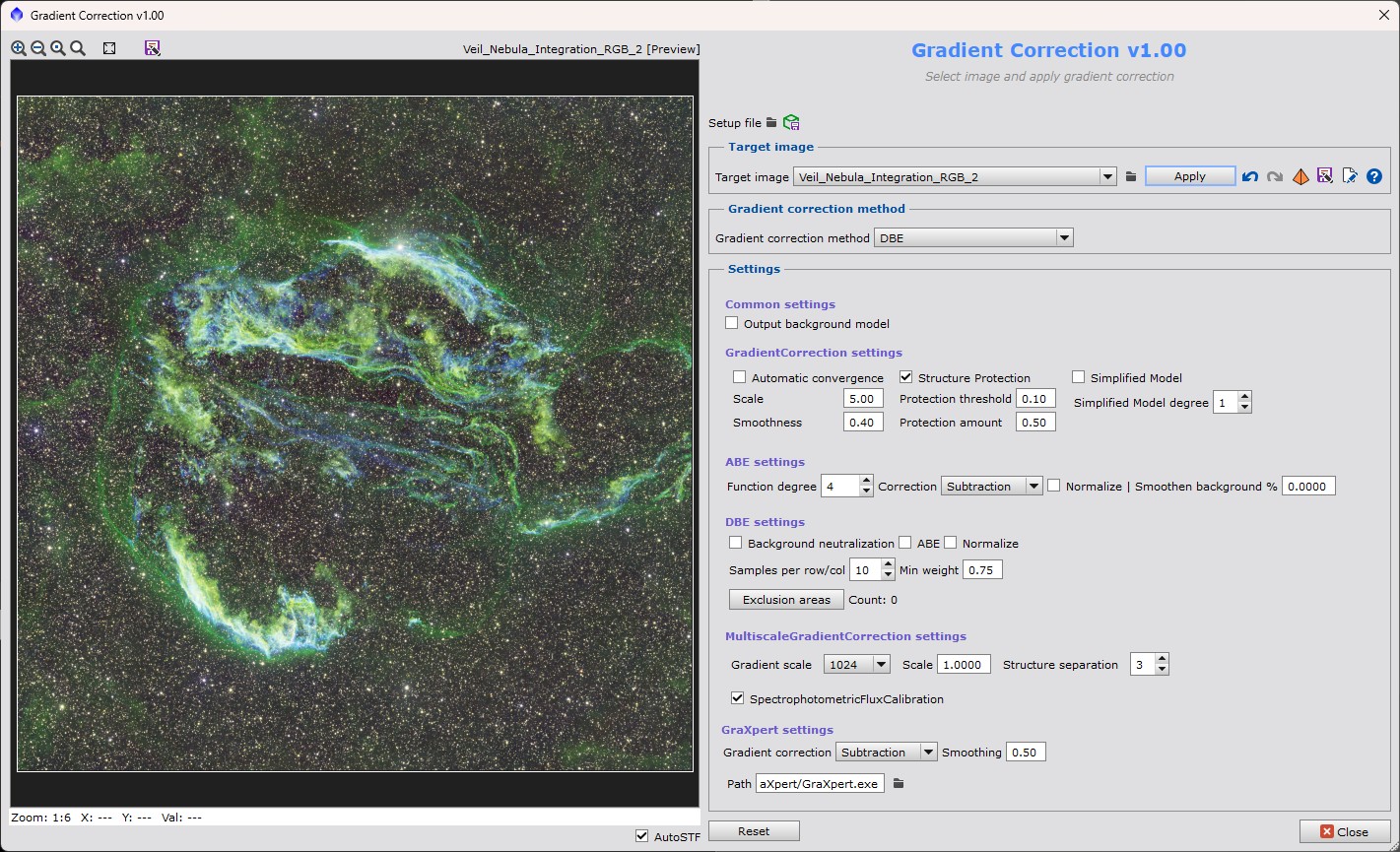
Gradient correction
Standalone gradient correction script allows applying different gradient correction methods to images.
Narrowband combinations
Standalone narrowband combinations script allows combining narrowband images to RGB images using different color palettes.
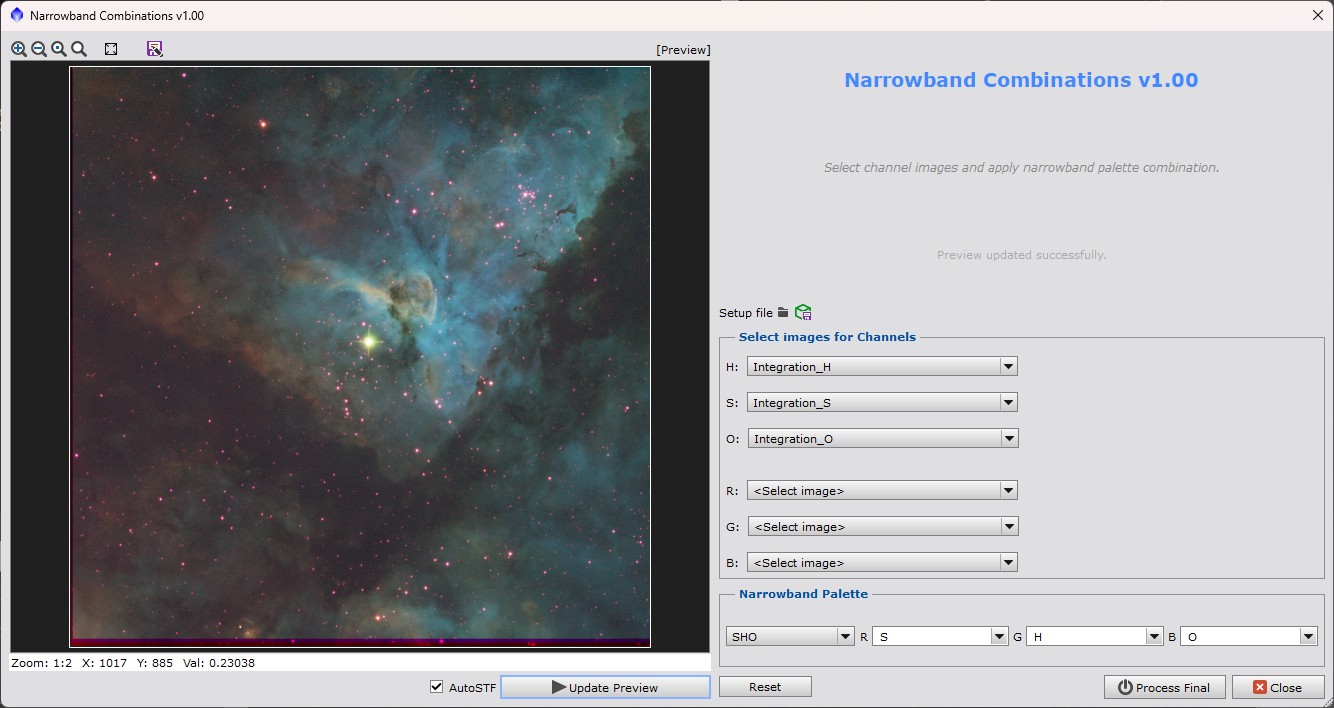
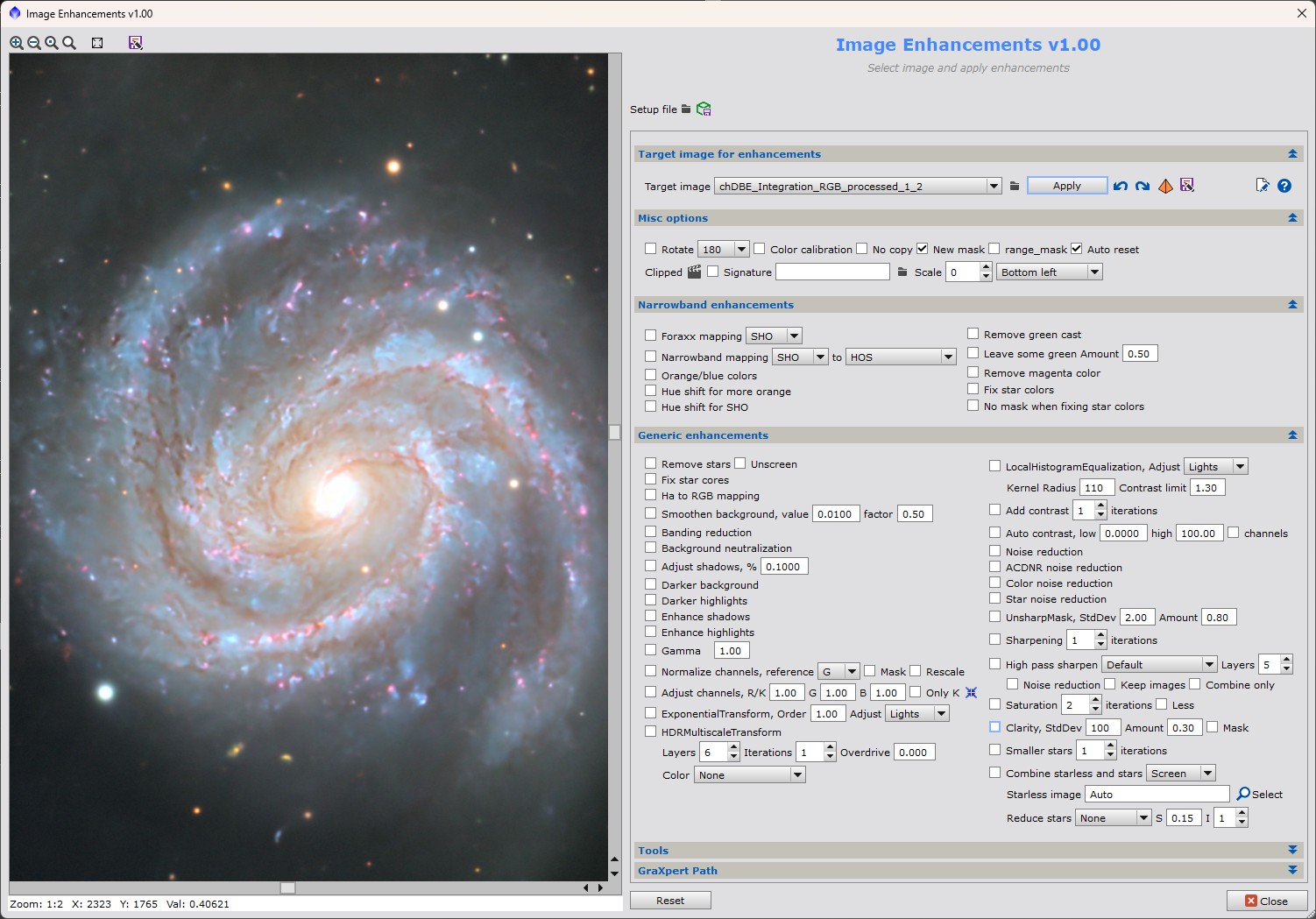
Image enhancements
Standalone image enhancements script allows applying different image enhancements to images.
Selective color
Standalone selective color script allows applying selective color adjustments to images.
